
Recently, we hosted a webinar on Microsoft 365 Copilot and best ways to leverage the AI to make everyday tasks more efficient in tools like Excel, Outlook, Teams, and Word. Our Senior Solutions Architect and in-house Copilot expert, David Sirois, shared insights on the differences between the free and licensed versions of Copilot, demonstrated how the AI works across Microsoft 365, and, most importantly, showed how to write good Microsoft 365 Copilot prompts.
In recent months, our team had noticed that many users, including our own customers, were curious about Copilot and eager to do more with the AI assistant. So, David focused the webinar on practical usability and how to get the most out of Copilot.
Throughout the session, he strongly emphasized one point: your results are only as good as your prompts. So, in this webinar recap, we go over David’s 6 building blocks to create effective Copilot prompts.
Quick webinar recap & key takeaways
Throughout the webinar, David emphasized a few key takeaways that are central to ensuring Copilot is used in a secure and smart way across an organization. Here are 3 main takeaways from the webinar. To learn more, watch the full webinar recording below.

Licensed vs. free Copilot: Security matters
Many users naturally have questions about the differences between the free and licensed versions of Copilot. Apart from usability, David shared that one of the biggest distinctions between the two is security.
With Copilot licensed through Microsoft 365, your data stays within your organization’s compliance and security framework. Your IT team can then set up additional layers of security to manage user permissions, so no employee has unauthorized access to confidential documents. The free version of Copilot doesn’t offer that same enterprise-grade security.
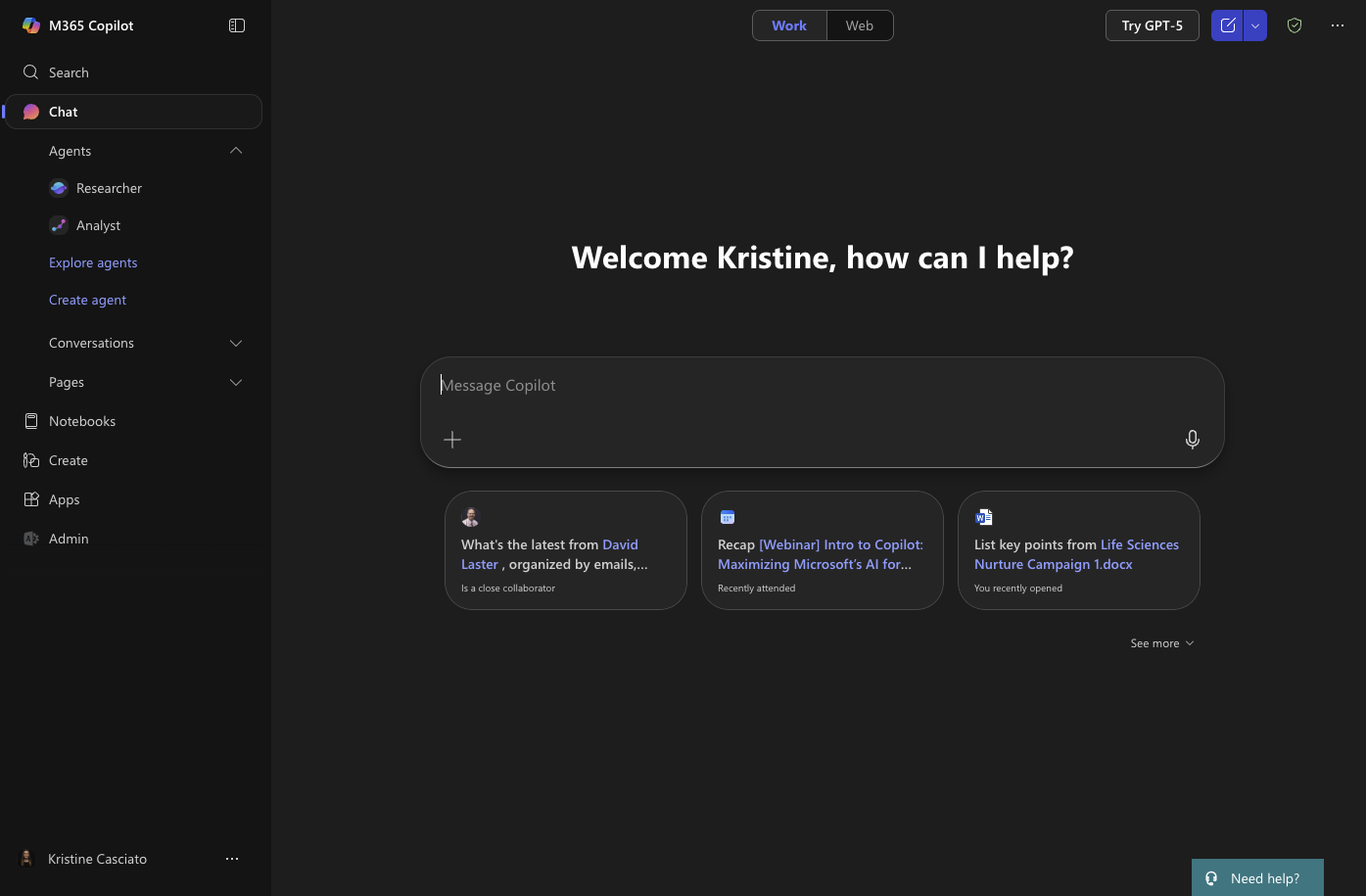
Copilot’s superpower is its interoperability with Microsoft 365
Simply put, the real advantage of Copilot comes from its seamless integration with the Microsoft 365 tools that users leverage every day. Because the AI is built to work within Outlook, Teams, Excel, Word, and PowerPoint, Copilot can draw on your work data, through Microsoft Graph, to help with context-specific tasks and integrate into your workflow.
Think of Copilot as an intern
David started off the webinar by telling attendees to think of Copilot as an intern. This analogy is especially helpful to keep in mind when prompting Copilot. Just like mentoring an intern, Copilot learns from the way you prompt it. The more context you provide, the better it becomes at delivering the output you need.
How to write prompts to get better answers from Copilot
During the webinar, David shared what he finds to be the 6 building blocks of well-written, effective Microsoft 365 Copilot prompts.

Define the goal
Tell Copilot the purpose or goal of what you need to get done. The better you define the goal, the more likely you will get the output you need.
For instance, say you need to write a marketing email to promote a new cybersecurity solution. If you simply tell Copilot, “Write a promotional email,” without offering any further direction or goal in your prompt, you will likely end up with something generic that doesn’t really save you any time. Here is a better way to prompt Copilot:
“Write a promotional email to introduce our new cybersecurity solution to mid-sized tech companies. Focus only on features relevant to IT managers. Format the email with a subject line, greeting, body, and CTA. Use a confident and professional tone. Include the product name, launch date, and pricing tier. Keep the email under 200 words and avoid technical jargon.”
This prompt is stronger because it clearly defines the goal, audience, format, tone, and constraints like word count and avoiding jargon. It also ensures Copilot includes key details such as product name, launch date, and pricing in the email. This way, you get a more tailored email draft that you can actually use.
Provide context
Copilot works well when it has enough context about what you are asking it to create. The context limits the endless possibilities that could result from your prompt, ensuring that you get the answer you are looking for.
For example, imagine you want to share insights on cloud-native architecture. If you only tell Copilot “Write a LinkedIn post about cloud-native architecture,” you will likely end up with something vague that doesn’t reflect your expertise or point of view. Here’s a stronger version of that prompt:
"Draft a LinkedIn post sharing insights on the future of cloud-native architecture for enterprise applications. Focus only on scalability and security. Format as a short paragraph followed by 3 key takeaways. Use an inspiring and forward-thinking tone. Include a quote from a recent Gartner report and a reference to your role as a Senior Solutions Architect. Keep the post under 300 words and avoid promotional language."
This works better because it gives Copilot specific context like the focus areas (scalability and security), the format (paragraph and takeaways), and even the perspective it should write from (your role as Senior Solutions Architect). That level of context helps Copilot generate a post that feels professional and credible.
Specify the format
If you need Copilot to provide content in a specific format, make sure you include that detail in your prompt to get a usable output. Here’s an example of a good prompt that clearly states the desired format:
"Write an introductory script for a training module on zero-trust security principles. Limit the context to remote workforce scenarios. Format as a spoken script for a video narrator. Use a friendly and educational tone. Include the module title, target audience, and learning objectives. Keep it under 2 minutes and avoid acronyms unless explained."
Define the tone
Tone is an important detail to specify in your prompt. This ensures you get content that aligns with your brand voice, lands the way you want it to with your audience, and fits the context of the assignment. For example, in the prompt below, specifying a persuasive and visionary tone is helpful to ensure the resulting content is geared to inspire C-level stakeholders about the potential of AI-driven analytics.
“Create an executive summary for a proposal to implement AI-driven analytics in retail operations. Limit the scope to inventory optimization and customer behavior prediction. Format as a bulleted list followed by a short paragraph. Use a persuasive and visionary tone. Include company name, projected ROI, and timeline. Ensure the summary is suitable for C-level stakeholders and stays under one page.”
Variables
Define the elements you want included in the output, so Copilot can focus on the information that matters and avoid unnecessary details. For instance, below is an example of well-written prompt that clearly states the variables to be included so Copilot’s output is structured and relevant.
“Generate a comparison table of three cloud storage providers for enterprise use. Focus only on pricing, security features, and scalability. Format as a markdown table. Use a neutral and analytical tone. Include provider names, monthly cost, encryption type, and max storage capacity. Ensure all data is current and sourced from official websites. Do not include consumer-grade plans.”
If you had simply said, “Compare three cloud storage providers for enterprise use,” Copilot would generate content that is beyond the scope of what you need, which means you would have to spend more time editing and adjusting the output to tailor it.
Detail constraints
Similarly, you want to tell Copilot what not to include in its output. For instance, if you are writing a report for a non-technical audience, you want to tell Copilot to avoid technical jargon in its output. This way, Copilot can generate content that is tailored to your readers.